


Overview
Easily print colorful mailing labels, shipping labels or envelopes from your contacts, spreadsheets, or manually entered addresses. Labels conform to popular Avery® products for letter and A4 size sheets. Simply type your Avery product number into the product finder and the settings are automatically adjusted. Mailing lists store addresses and formatting options so you can print these with just a click of a button.
Getting Started
The App will help you get started by automatically downloading your contacts into an address database, creating your first mailing list and adding your addresses to it. The app will automatically update contacts that you’ve added or edited.
An Avery® product finder helps you set up the size labels that you want to print. Just select the product number and the page size (letter or A4), the label size, and the output type (labels or shipping labels) are set for you. After that, all you have to do is print it.
Adding Addresses
There are three ways to add addresses to the App: 1) download contacts, 2) type it in from the keyboard, or 3) import a CSV (comma separated value) file from a spreadsheet.
Importing from your contacts can either be done automatically or manually. Use the manual option if you want reduce the size of the database.
Importing Addresses from a Spreadsheet
A file must have certain characteristics to be imported. It must be saved as a Comma Separated Value file (CSV). It also must have specific heading titles. The user guide explains this in detail. Below are some useful templates:
Excel Upload Demo (must export to *.csv for the program to upload.)
Numbers Upload Template and Demo (must export to *.csv to upload)
If you have a large spreadsheet and it is not in the correct format then computer users might be able to reformat it using AppleScript. The attached example script has a section on changing the header names and a section that merges two address lines into one. Copy and paste it into the Script Editor to modify or run it.
Bypassing the Database
Shipping Labels and envelopes allow you to bypass the database and simply type the information for the address and return address. Bypass the address for a single, one-off shipping label or envelope. A bypassed return address is applied to all labels and envelopes. A bypassed address and return address are memorized by the app but are not added to the database. For instance, if you bypass the database for the return address then it will be stored and available anytime you want to use it.
Formatting the Output
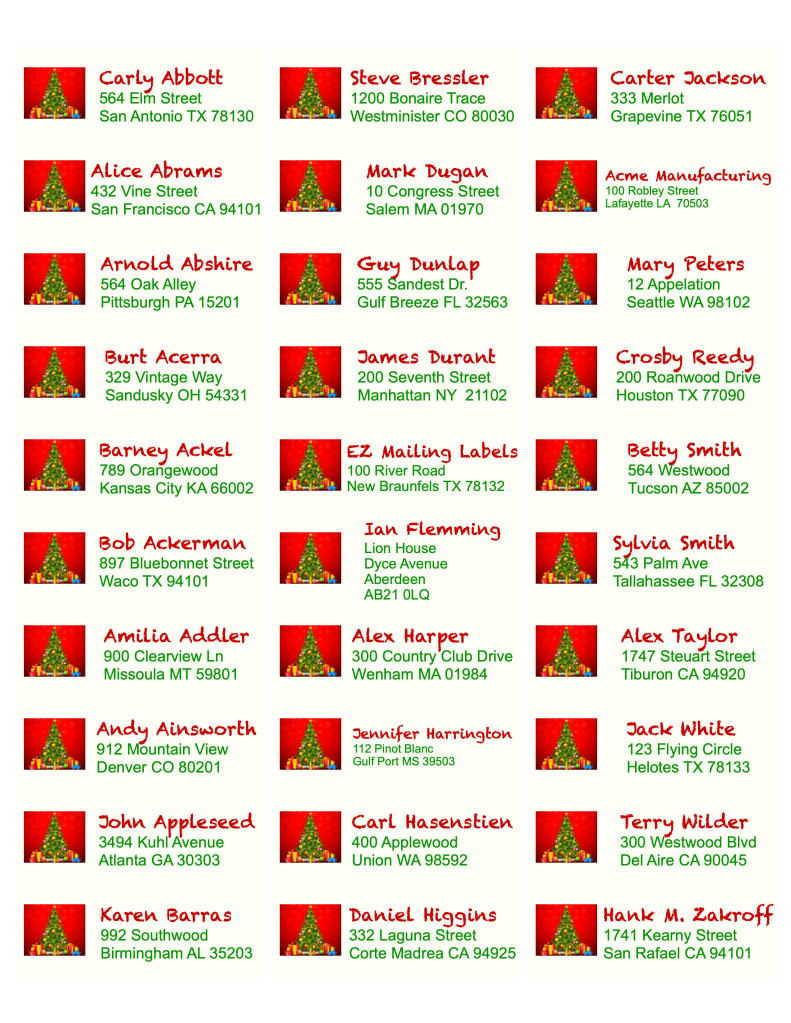
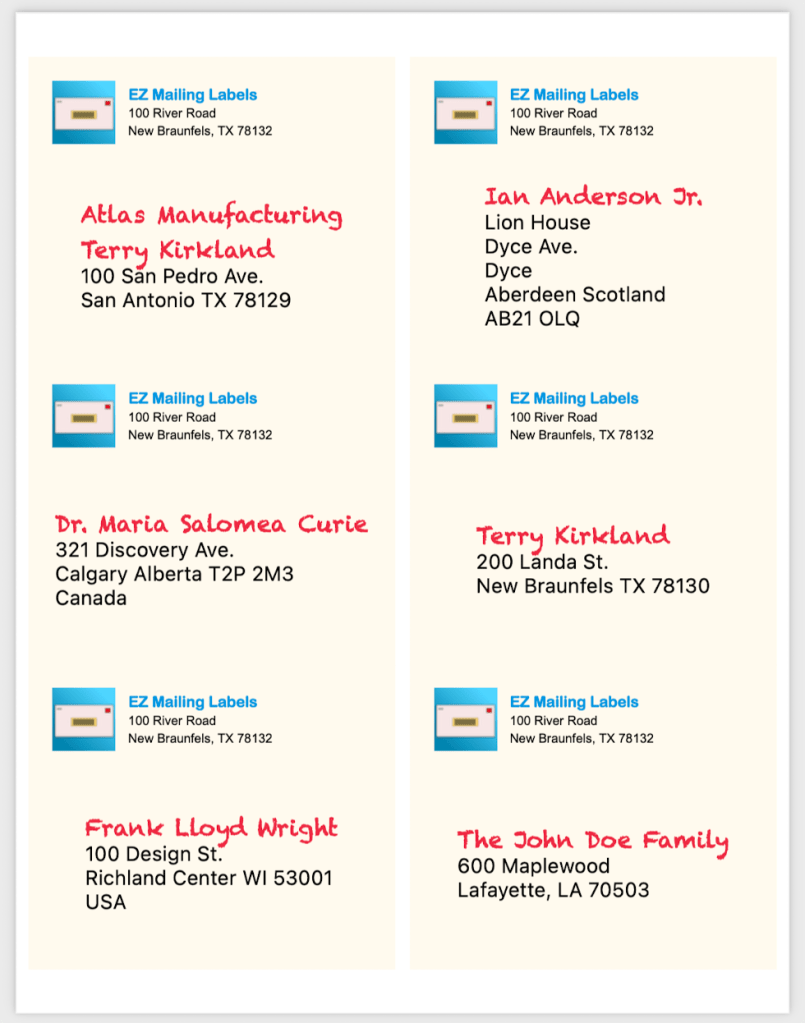
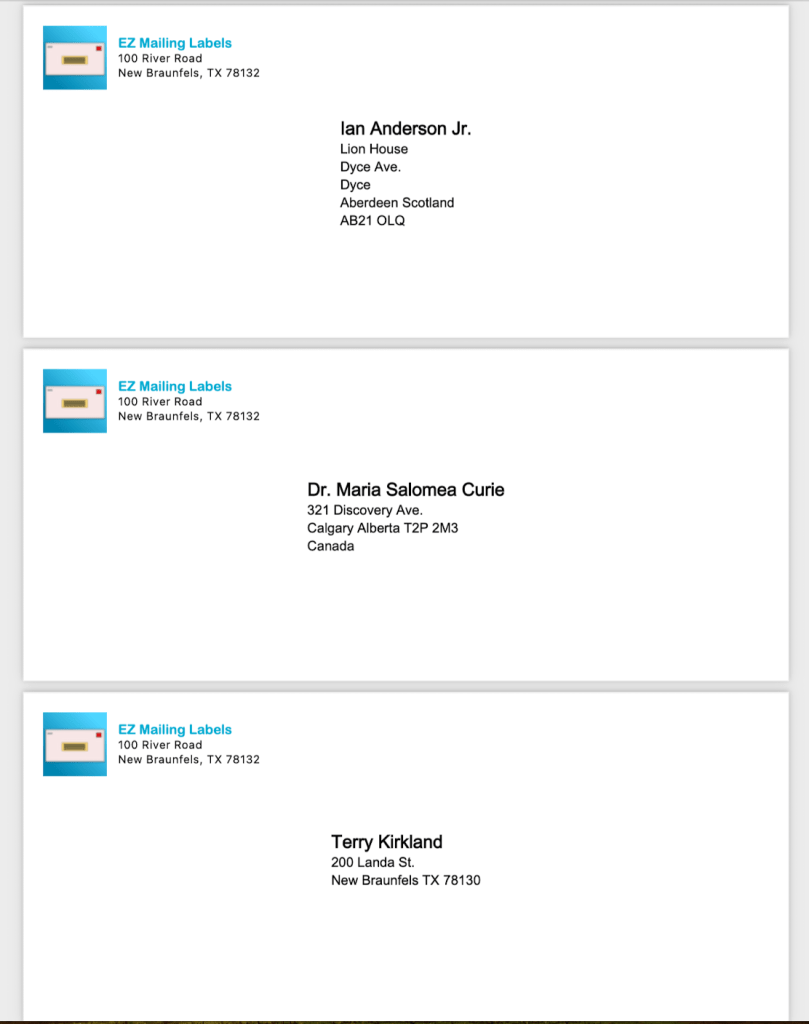
The App lets you select the font, font size and color of the name, address, return name and return address independently. Labels also allow you to select a background color. All outputs support a an image in the return address.
Example Outputs
Support


 John's IOS App Support